
Teams Meeting vs Live Event

Last Updated 2 years ago ago
What are Microsoft Teams Live Events?
Teams live events is an extension of Teams meetings, enabling you to produce events for large online audiences with more control over video, audience interaction, and reporting. Now you can do all this from home!
What are Microsoft Teams Meetings?
Meetings in Teams include audio, video, and screen sharing. They’re one of the keyways to collaborate in Teams. And you don’t need to be a member of an organization (or even have a Teams account!) to join a Teams meeting—just look in the invitation for instructions about calling in.
|
|
Live Event |
Meeting |
|---|---|---|
|
|
|
Examples:
Webinars – Use Teams Live Event
Product Launch – Use Teams Live Event
Company monthly meeting – Teams Meeting
Meeting with potential costumer – Teams Meeting
Using Teams to Run Microsoft 365 Live Events
Right now, teams provide two types of options to schedule a Meeting or a Live Event. Here in this article, we discuss the features of both Teams Meeting and Teams Live Event. A live event delivers one-to-many video and content streaming to a large online audience while providing centralized control of the shared attendee experience.
Teams Live Events Best Practices
To cater to a large online audience, you should broadcast your event using Teams live event. It allows you to broadcast your event both internally and publicly. Unlike Teams Meeting, Live event is designed where few people are presenting and all the other are attending the event with just a single type of collaboration which is text-based Q&A, attendee cannot share screen or use your mic while attending the Teams Live Event. In contrast to that Teams meetings are designed for interactive and collaborative participation for many where you can also share content. The wide audience make Teams live event best option for Webinar, Product Launch, Conference, community event and other things where large audience is willing to participate because it furnishes audience interaction capabilities. You can use Teams Live Events for your Virtual Events.
Planning and Scheduling a Live Event
For this, you don’t necessarily need a professional video production crew. Largely streamed live events have multiple roles to successfully broadcast event participate in a virtual event, including the following: producer, presenter/remote presenter, and attendee.
|
|
Producer |
Presenter |
Attendee |
|
|---|---|---|---|---|
|
Creates the live event |
Yes |
No |
No |
|
|
Yes |
No |
No |
|
|
Selects production method |
Yes |
No |
No |
|
|
Configures event options (for example, the moderated Q&A) |
Yes |
No |
No |
|
|
Invites attendees |
Yes |
No |
No |
|
|
Selects event group members |
Yes |
No |
No |
|
|
Manages reports generated after the event is over |
Yes |
No |
No |
|
|
Starts and stops the live event |
Yes |
No |
No |
|
|
Shares own video |
Yes |
Yes |
No |
|
|
Share participant video |
Yes |
No |
No |
|
|
Shares active desktop or window |
Yes |
Yes |
No |
|
|
Selects layouts |
Yes |
No |
No |
|
|
A viewer. Watches the event live or on-demand |
No |
No |
Yes |
|
|
Questions |
No |
No |
Yes |
|
|
Answers |
Yes |
Yes |
No |
Supported Platform Teams live event vs Meeting
|
|
Live Event Producer |
Live Event Presenter |
Live Event Attendee |
Teams Meeting Organizer |
Teams Meeting Attendee |
|---|---|---|---|---|---|
|
Desktop |
Yes |
Yes |
Yes |
Yes |
Yes |
|
Web |
No |
No |
Yes |
Yes |
Yes |
|
Mobile |
No |
No |
Yes |
Yes |
Yes |
*Linux isn’t supported for live events.
How to Set Up Microsoft Teams Live Events
- Use Microsoft Teams Live Events like you schedule Teams Meeting. Select Live Event from calendar.

2. Select date and time, invite producer and presenter.

3. Choose whether the event is private or public.

4. Pick options.

Microsoft Teams live event usage report
Once an event is over, producers can take the following actions on the recording and associated reports (if they were configured).

- You can download all the resources i.e. Recording, Q&A etc.
- Click Delete all if you are not interested in insight.
- Refresh to see the latest resources.
|
View In Teams |
Download |
Delete |
|
|---|---|---|---|
|
Attendee report |
No |
Yes |
Yes |
|
Live event recording |
No |
Yes |
Yes |
|
Hive Insights report |
No – opens the Hive link in a browser |
N/A |
N/A |
|
Q&A report |
No |
Yes |
Yes |
|
Transcript |
No |
Yes |
Yes |
Town Hall Streaming: How to Stream Your Meeting
1. Select your live online event from Calendar.
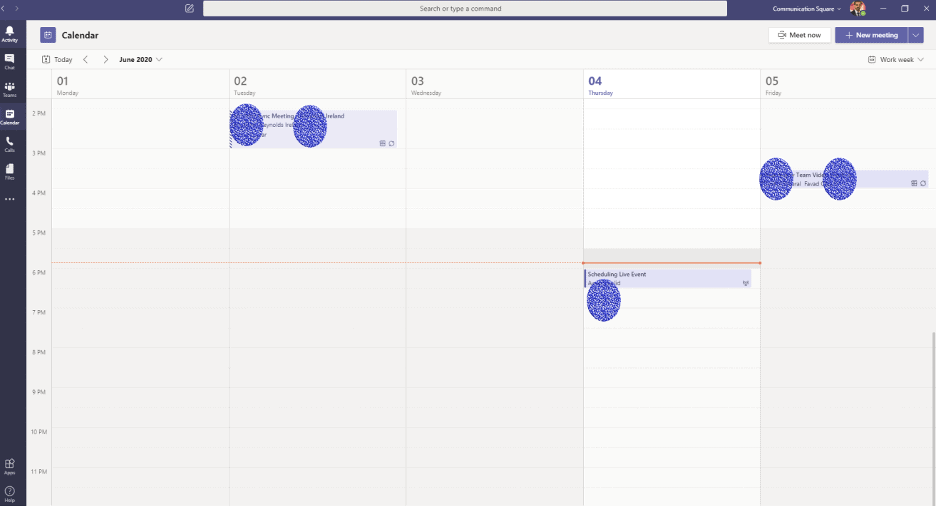
2. Click Join.

3. Select Join Now.

4. Currently the event is in pre-live mode. Click on the share button to share the content with the audience.
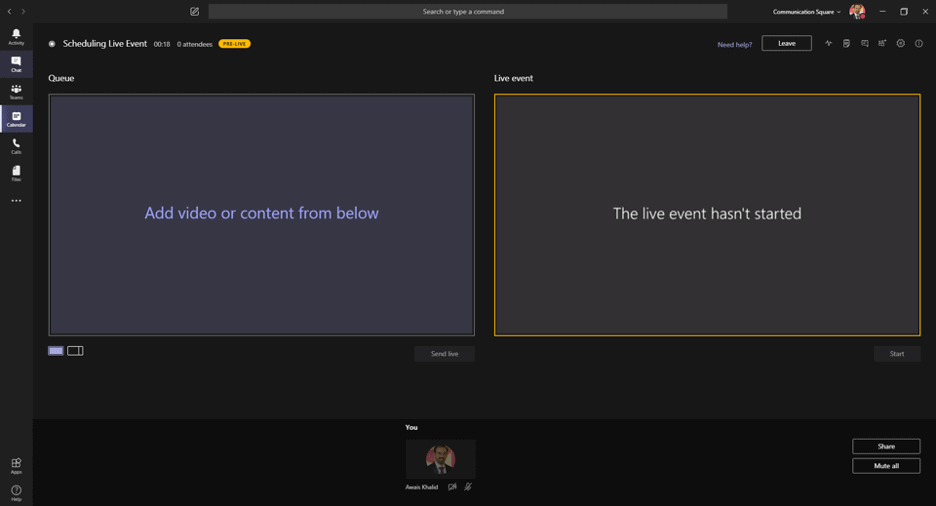
5. Select which application or screen you want to share with attendees.

6. Choose your content and click send live.

7. Now the final step is to click start to start Live Event.

8. You are Live Now.

Join A Live Event as an Attendee
The organizers will provide a link to the attendees and larger audiences to join, you can join the event using that link.
1. Click that link to ask you whether you want to join on the web or on the Application.

2. If you want to join on the web click on the highlighted area, and below is the attendee view.

Cost of Teams live event vs Meeting
There is no additional cost if you have Teams License. You do not need any specific license; however, you will need one of the following licenses to avail the wide variety of features.
- Office 365 E1, E3, E5, A3, A5
- Microsoft 365 E1, E3, E5, A3, A5
If you do not Microsoft licenses you can schedule a strategy call to find out the recommended options
References:

Related Articles

Beyond the Prompt: Transitioning Your SMB to Autonomous AI Agents in 2026
Last Updated 2 months ago ago The 2026 Inflection Point: From Generative Hype to Agentic Results The global business landscape…
Read Article →
Windows Intune Autopilot: Powerful Ways to Boost Your Hybrid Workplace Efficiency
Last Updated 12 months ago ago In the era of hybrid work, managing corporate devices has become increasingly complex. A…
Read Article →
Managed IT Services for Utilities: How Communication Square Reduced Downtime & Enhance Security for ABI New England
Last Updated 1 year ago ago Executive Summary (Microsoft Managed IT Services for Utilities) Company: ABI New England Industry: Utilities…
Read Article →Need help with your Microsoft solutions?
Speak with our certified experts and find the right path for your organization.